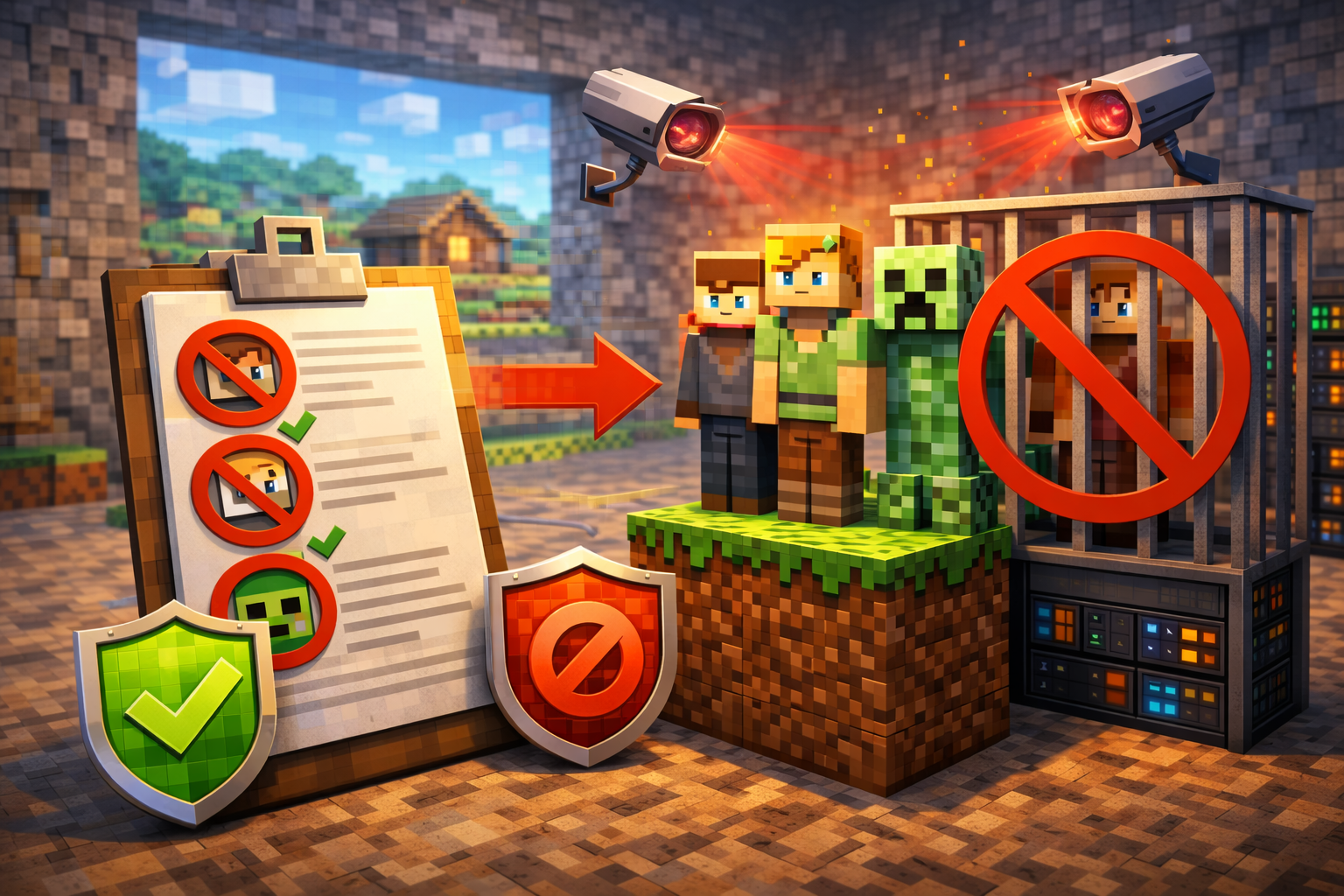
How to Ban Players on a Minecraft Server: 2026 Guide

Introduction
Managing a multiplayer world requires clear rules and effective moderation. Knowing how to ban players on a Minecraft server is essential for protecting builds, preventing harassment, and maintaining a fair experience for everyone. Without proper enforcement, griefing, cheating, and toxic behavior can quickly drive players away.
This guide explains exactly how Minecraft’s ban system works across Java and Bedrock editions. You’ll learn the correct commands, required permissions, and best practices for banning and unbanning players using in-game chat, the server console, and configuration files. By the end, you’ll be able to apply bans confidently, avoid common mistakes, and implement smarter moderation workflows that scale with your community.
Quick Summary Box
- Use
/ban <player> [reason]to permanently block a player account - Use
/ban-ip <player|IP>to stop ban evasion from the same network - Unban players with
/pardonor/pardon-ip - OP permission level 3 or higher is required
- Vanilla servers support permanent bans; temporary bans require plugins
Understanding the Minecraft Ban System
Minecraft includes a built-in moderation system that blocks access at the server level. When a player is banned, the server records the action and prevents future connections until the ban is removed.
Ban vs Kick: Key Differences
- Kick: Immediately disconnects a player but allows instant rejoin
- Ban: Blocks the player entirely until an admin removes it
Bans persist across restarts and are stored in server data files. This makes them reliable for long-term enforcement, unlike kicks which are purely temporary.
Where Bans Are Stored
Minecraft saves bans in JSON files inside the server directory:
banned-players.jsonfor account bansbanned-ips.jsonfor IP bans
These files record usernames, UUIDs, timestamps, and ban reasons. Editing them incorrectly can corrupt data, so commands are usually safer.
Required Permissions to Ban Players
Before issuing any ban commands, you must have sufficient privileges.
Operator (OP) Levels Explained
Minecraft Java Edition uses four OP levels:
| OP Level | Role | Ban Permissions |
|---|---|---|
| Level 1 | Basic Admin | No ban access |
| Level 2 | Gamemaster | No ban access |
| Level 3 | Admin | Can ban and unban |
| Level 4 | Owner | Full control |
Minimum requirement: OP Level 3.
You can assign OP status from the console:
op <playername>
Official command documentation is available on the Minecraft Commands Guide.
How to Ban a Player Using In-Game Commands
In-game banning is the fastest method when you are online and already have OP permissions.
Step-by-Step Process
- Press T to open chat
- Enter the ban command
- Confirm the server message
Command Syntax
/ban [reason]
Example
/ban GriefingPlayer Destroying protected builds
The reason is optional but strongly recommended. Clear documentation helps with staff coordination and ban appeals.
Once issued, the player is immediately disconnected and cannot reconnect.
How to Ban Players from the Server Console
Console access is ideal when you are offline or managing the server remotely.
Console Command Format
Console commands use the same syntax without the leading slash:
ban [reason]
Console bans execute with full administrative privileges and do not require in-game OP status.
This method is reliable for emergency moderation and automated workflows.
Player Ban vs IP Ban: Choosing the Right Option
Minecraft supports two ban types, each with different use cases.
Player (Username) Bans
Player bans block a specific Minecraft account.
Best used for
- First-time offenders
- Minor rule violations
- Situations where appeals are possible
Limitations
- Players can rejoin using alternate accounts
IP Bans
IP bans block all connections from a specific network address.
IP Ban Command
/ban-ip
Example
/ban-ip GriefingPlayer
Best used for
- Repeated ban evasion
- Severe harassment or exploits
- Players abusing alt accounts
Limitations
- Ineffective against VPNs or frequently changing IPs
Best practice: Apply both player and IP bans for serious violations.
How to Unban Players on a Minecraft Server
Minecraft uses the pardon command instead of “unban.”
Unban a Player Account
/pardon
Unban an IP Address
/pardon-ip
After unbanning, the player can immediately reconnect.
Viewing the Ban List
To review active bans:
/banlist players
/banlist ips
These commands help identify which bans are still active and which ones can be lifted.
Editing Ban Files Manually (Advanced)
Manual editing is useful when commands are unavailable, but it requires caution.
File Locations
banned-players.jsonbanned-ips.json
Safety Rules
- Stop the server before editing
- Preserve valid JSON formatting
- Back up files before changes
To clear all bans, the file should contain an empty array:
[]
For official file structure references, see the PaperMC Vanilla Data Files Documentation.
Temporary Bans: Vanilla Limitations
Vanilla Minecraft does not support temporary bans. All bans are permanent until removed.
Plugin-Based Solutions
Temporary bans require server software such as Spigot or Paper and moderation plugins.
Common capabilities include:
- Time-based bans
- Automatic unbanning
- Alt-account detection
These solutions are not available on pure vanilla servers or Realms.
Java vs Bedrock Edition Differences
Ban mechanics are similar, but there are important distinctions.
Java Edition
- Full command support
- Extensive plugin ecosystem
- Flexible OP permission levels
Bedrock Edition
- Fewer hosting and plugin options
- Often managed through Realms
- Limited advanced moderation tools
Official differences are documented by Microsoft in the Java and Bedrock Comparison Guide.
Tips, Common Mistakes, and Optimization
Effective banning is about consistency, not just commands.
Best Practices
- Always include clear ban reasons
- Maintain a written rule set
- Log moderation actions
- Use warnings before permanent bans
Common Mistakes to Avoid
- Banning without sufficient permissions
- Editing ban files while the server is running
- Using kick instead of ban for serious issues
- Relying only on player bans for repeat offenders
Preventing Ban Evasion
- Combine player and IP bans
- Monitor login patterns
- Use whitelists for private servers
- Limit OP access to trusted staff
Proactive moderation reduces the need for bans altogether.
FAQ Section
How do I ban a player on my Minecraft server?
Use /ban <playername> [reason] in-game with OP permissions or run ban <playername> from the console. The player is immediately blocked.
What’s the difference between banning and kicking?
Kicking disconnects a player temporarily. Banning prevents them from reconnecting until an admin removes the ban.
Can banned players join with another account?
Yes. Account bans only block one username. Use /ban-ip to reduce alt-account evasion.
Do I need OP permissions to ban players?
Yes. You must have OP Level 3 or higher to use ban and pardon commands.
How do I check who is banned on my server?
Run /banlist players or /banlist ips. Most control panels also display this information.
Can I temporarily ban players without plugins?
No. Temporary bans require plugins and are not supported on vanilla servers.
Conclusion
Banning players is a critical responsibility for Minecraft server administrators. When used correctly, bans protect your community, preserve gameplay quality, and discourage repeat offenses. Understanding the difference between player bans and IP bans, using the correct commands, and maintaining proper permissions ensures fair and effective moderation.
Set clear rules, document every action, and reserve permanent bans for serious or repeated violations. With the right approach, moderation becomes a tool for stability rather than punishment.
Published by UpbeatUptake.com
About Us
Upbeat Uptake
Curated Insights and Updates
Hello, we are Upbeat Uptake, a simple blog focused on sharing clear ideas, useful updates and fresh perspectives. Our goal is to make information easy to understand and enjoyable to read.
We cover topics like technology, education, exams, gaming and current affairs, with an emphasis on clarity and relevance. Every post is created to inform, inspire and help you stay updated without unnecessary noise.
Follow Us
Social channels coming soon. Stay tuned for updates.
Leave a Reply