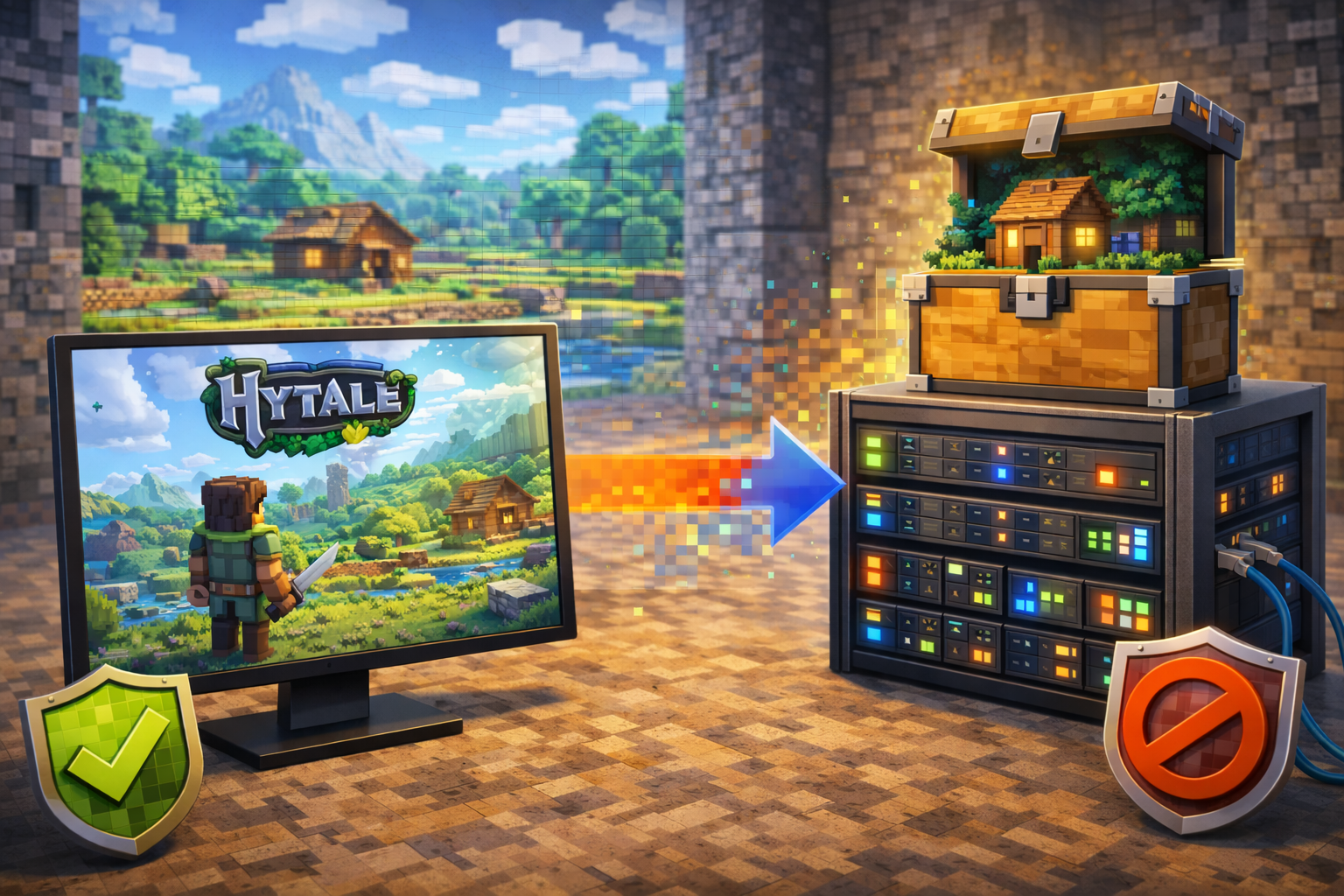
How to Transfer a Hytale World to a Server (Singleplayer to Multiplayer Guide) 2026

Introduction
Learning how to transfer a Hytale world to a server is essential if you want to turn a solo project into a shared multiplayer experience. Many players invest dozens or even hundreds of hours building structures, exploring zones, and progressing characters in singleplayer, only to realize later that they want friends to join. Fortunately, Hytale’s server-first architecture makes this process far cleaner than in many other sandbox games. In this guide, you’ll learn how to transfer a Hytale world from singleplayer to a dedicated server in 2026, including file locations, upload methods, player data migration, mod considerations, and verification steps. The workflow described here follows Hytale’s official world structure and server behavior as documented in the provided reference material
Quick Summary Box
- Hytale singleplayer worlds are fully compatible with dedicated servers
- You must copy the universe/worlds and universe/players data
- Servers must be stopped before transferring any world files
- Modded worlds require matching server-side mods and configs
- Always back up both server and singleplayer data before starting
Why Transfer a Hytale World to a Server
Moving a singleplayer world to a server allows continuous multiplayer access without restarting progress. Dedicated servers stay online even when the original creator is offline, enabling persistent worlds for friends or communities.
Key Benefits of Dedicated Servers
- Persistent uptime independent of one player’s client
- Better performance by separating client and server workloads
- Improved stability and scalability for multiple players
- Centralized backups and administrative controls
For long-term projects, creative builds, or cooperative survival worlds, a dedicated server is the correct foundation.
Prerequisites Before You Begin
Before transferring any world data, confirm that your server environment is ready. Skip these steps if you have game hosting with any hosting company
Server Software and Java Requirements
Hytale servers require Java 25 or newer. Earlier Java versions will prevent the server from starting.
To confirm your Java version, run:
java -version
The output must indicate Java 25.x or higher.
Hardware Recommendations
While small worlds can run on minimal hardware, multiplayer servers benefit from:
- At least 4 GB RAM (6–8 GB recommended)
- A modern multi-core CPU with strong single-thread performance
- SSD or NVMe storage for faster world loading
Network Configuration
Hytale servers communicate using the QUIC protocol over UDP port 5520. Ensure:
- UDP port 5520 is allowed through your firewall
- Port forwarding is configured correctly if hosting from home
Backup Everything
Before transferring files:
- Back up your singleplayer world
- Back up the server’s entire universe directory
- Rename existing server folders instead of deleting them
Backups provide a recovery path if anything goes wrong.
Locating Your Singleplayer World Files
Hytale stores singleplayer worlds in a consistent directory structure across platforms.
Default Save Locations
- Windows:
AppData/Roaming/Hytale/UserData/Saves - macOS:
Application Support/Hytale/UserData/Saves - Linux:
~/.local/share/Hytale/UserData/Saves
Each world appears as its own folder named after the world.
Using the Hytale Launcher Shortcut
The fastest way to find your world is through the launcher:
- Open the Hytale launcher
- Go to Settings
- Select “Open Directory”
- Navigate to UserData → Saves
Inside each world folder, you will find a universe directory.
Understanding Hytale Server File Structure
Dedicated servers mirror the same internal universe structure used in singleplayer.
Key Server Directories
- HytaleServer.jar – server executable
- universe/ – contains worlds and player data
- mods/ – server-side plugins and asset packs
- logs/ – startup and runtime logs
Universe Directory Layout
Inside universe:
- worlds/ – terrain, chunks, and world configs
- players/ – player inventories, positions, and progression
For a complete transfer, both folders must be handled correctly.
Step-by-Step: Transfer a Singleplayer World to a Server
Follow these steps carefully and in order.
Step 1: Stop the Server
Never modify server files while the server is running.
From the server console:
stop
Wait until the server fully shuts down.
Step 2: Access Your Singleplayer World Folder
Open your singleplayer world folder and locate:
- universe/worlds/YourWorldName
- universe/players/
These directories contain all terrain and player data.
Step 3: Copy the World Files
Copy the entire folder from:
- universe/worlds/YourWorldName
Place it temporarily on your desktop or another easy-to-access location.
Step 4: Upload the World to the Server
Upload methods depend on your hosting setup.
Control Panel File Manager
If using a hosting provider:
- Open the file manager
- Navigate to universe/worlds/
- Upload the copied world folder
FTP Upload
If using FTP or SFTP:
- Connect using an FTP client
- Navigate to universe/worlds/ on the server
- Upload the world folder
- Verify file sizes match the original
Large worlds may take several minutes to upload.
Step 5: Transfer Player Data
To preserve inventories, positions, and progress:
- Copy files from singleplayer universe/players/
- Upload them to server universe/players/
If player files already exist on the server:
- Merge folders instead of deleting
- Overwrite matching UUID files when restoring your own data
Restart the server after uploading player data.
Step 6: Transfer Mods for Modded Worlds
If your world uses mods, additional steps are required.
Server-Side Mods
- Upload all required mod .jar or .zip files to the server’s mods/ folder
- Ensure versions exactly match your singleplayer setup
Mod Configuration Files
- Copy mod configuration data from the singleplayer world
- Place it in the appropriate server mod directories
Missing or mismatched mods will prevent the world from loading.
Step 7: Set the Default World
Servers can host multiple worlds, but only one loads by default.
Using Commands
Join the server as an operator and run:
/world setdefault YourWorldName
Using Hosting Panels
Some panels allow selecting the default world through a graphical interface. Save changes and restart the server if required.
Step 8: Grant Operator Permissions
World management commands require operator access.
permissions.json Method
- Join the server once to generate your UUID
- Stop the server
- Edit permissions.json
- Add your UUID with operator permissions
- Restart the server
This is the safest long-term approach.
Verifying a Successful Transfer
After restarting the server, connect using the Hytale client.
World Integrity Checks
- Visit familiar locations
- Confirm structures and terrain are intact
- Open chests and verify item contents
Player Data Verification
- Check inventory, health, and progression
- Confirm spawn location matches your last singleplayer save
Mod Verification
- Open the mod list in-game
- Check server logs for mod initialization messages
- Resolve any missing dependency errors immediately
Common Transfer Issues and Fixes
World Not Loading
- Confirm server and client versions match
- Check logs for version or corruption errors
- Re-upload files if transfer was interrupted
Missing Chunks or Blocks
- Indicates corruption or version mismatch
- Restore from backup if possible
Mods Failing to Load
- Ensure all mods are installed server-side
- Match versions exactly
- Transfer mod configuration files
Connection Problems After Transfer
- Verify UDP port 5520 is open
- Disable VPNs temporarily
- Confirm firewall rules
Best Practices for World Transfers
Always Use Backups
- Back up before every transfer
- Keep multiple backup generations
Test on a Staging Server
- Upload the world to a test server first
- Verify everything works before production
Document Your Setup
- Record directory paths and commands
- Note mod versions and configurations
Avoid Common Mistakes
- Never edit files while the server is running
- Do not downgrade server versions after upgrading
- Avoid deleting worlds without backups
Tips, Common Mistakes, and Optimization
Tips for Smooth Multiplayer Performance
- Monitor CPU and RAM usage after transfer
- Adjust view distance for larger player counts
- Scale hardware as your community grows
Common Beginner Mistakes
- Forgetting to copy player data
- Uploading only world terrain without mods
- Not setting the default world
Optimization Recommendations
- Use SSD or NVMe storage
- Schedule regular maintenance restarts
- Review logs weekly for early warning signs
FAQ Section
Can I transfer any singleplayer world to a server?
Yes. Hytale singleplayer worlds use the same structure as server worlds.
Will my inventory and progress carry over?
Yes, as long as you transfer the universe/players data correctly.
Do mods automatically transfer?
No. Mods must be installed server-side and match your singleplayer setup.
Can I host multiple worlds on one server?
Yes. Each world lives in its own folder under universe/worlds/.
Is this process reversible?
Yes, if you keep backups. You can restore or re-transfer worlds at any time.
Conclusion
Transferring a Hytale world from singleplayer to a server in 2026 is a structured but manageable process when approached correctly. By understanding Hytale’s shared universe format, carefully copying world and player data, matching mod configurations, and verifying the transfer step by step, you can preserve all of your progress while unlocking multiplayer gameplay. With proper backups and testing, your singleplayer creation can evolve into a stable, persistent world enjoyed by friends or a growing community.
Published by UpbeatUptake.com
About Us
Upbeat Uptake
Curated Insights and Updates
Hello, we are Upbeat Uptake, a simple blog focused on sharing clear ideas, useful updates and fresh perspectives. Our goal is to make information easy to understand and enjoyable to read.
We cover topics like technology, education, exams, gaming and current affairs, with an emphasis on clarity and relevance. Every post is created to inform, inspire and help you stay updated without unnecessary noise.
Follow Us
Social channels coming soon. Stay tuned for updates.
Leave a Reply